
HINT: Printing with latest CUPS version (eg 2.4.7) does currently not work. We are investigating this issue.
In the meantime please print via USB-Stick (or the old print-system).
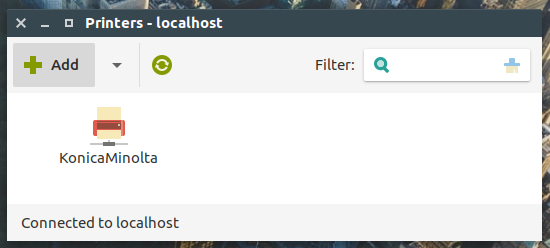
Go to your printer settings. This may depend on your Distribution, but the application is probablt called `system-config-printer`
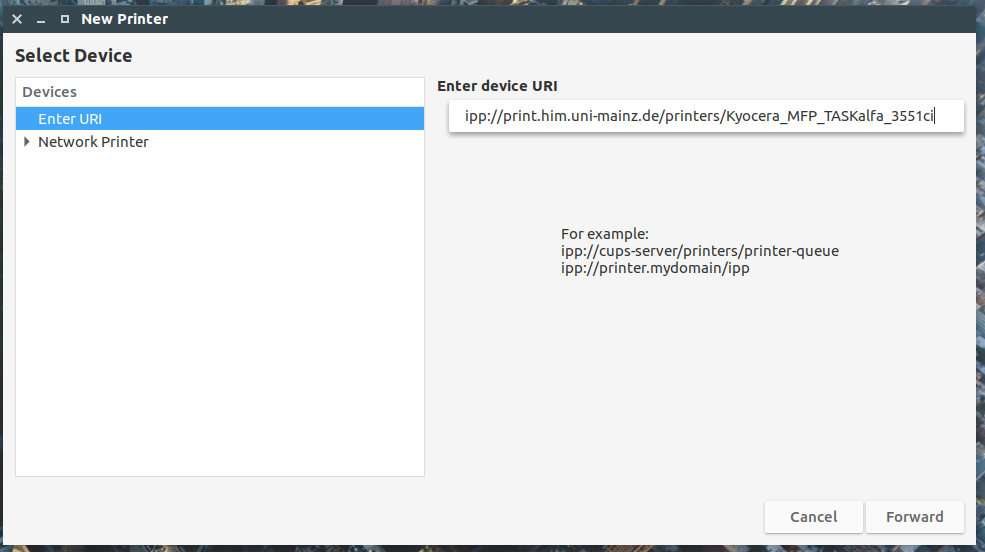
Specify the following device path:
ipps://him-printsrv-02.zdv.uni-mainz.de:53443/ipp/print
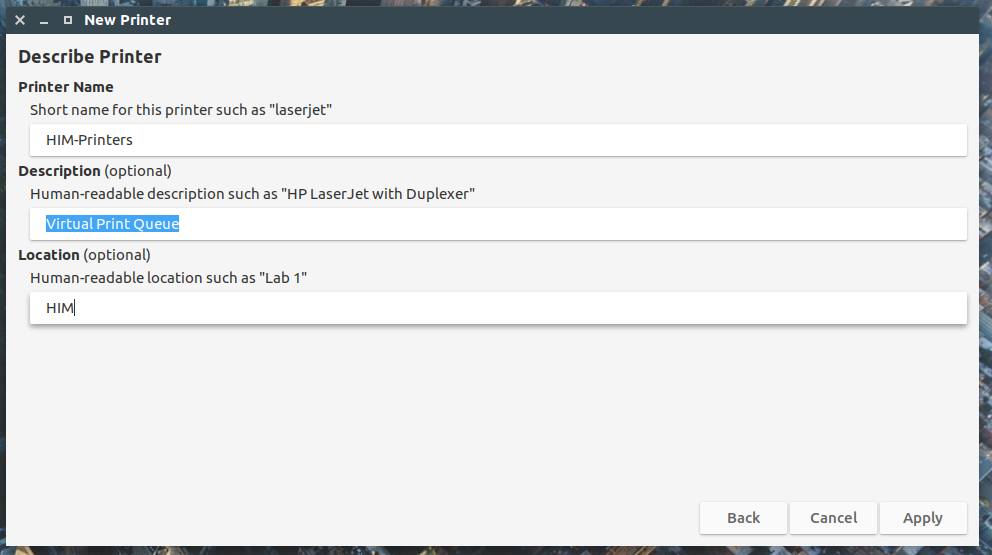
You can add some description that helps you identify the printer, but this is optional:
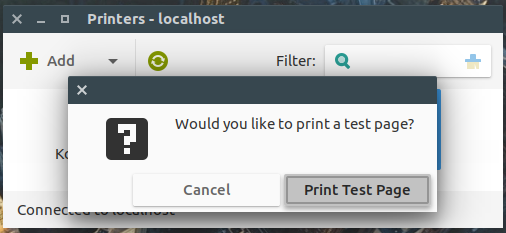
And print a test page. This is important, because you need to authenticate yourself!
This print job will not be printed until you are authenticated. That's okay, it's why we print that test page.
Authenticating
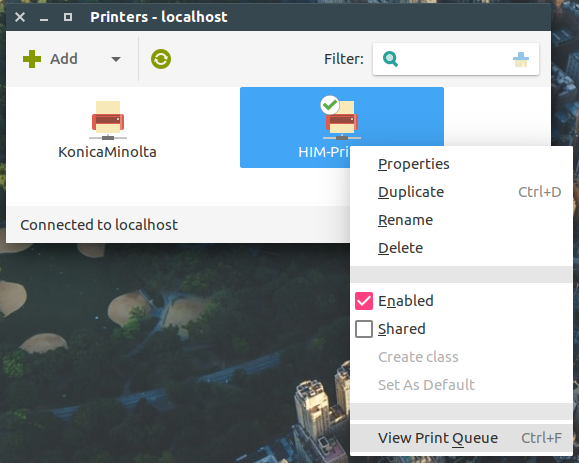
Open the print queue of the newly added printer:
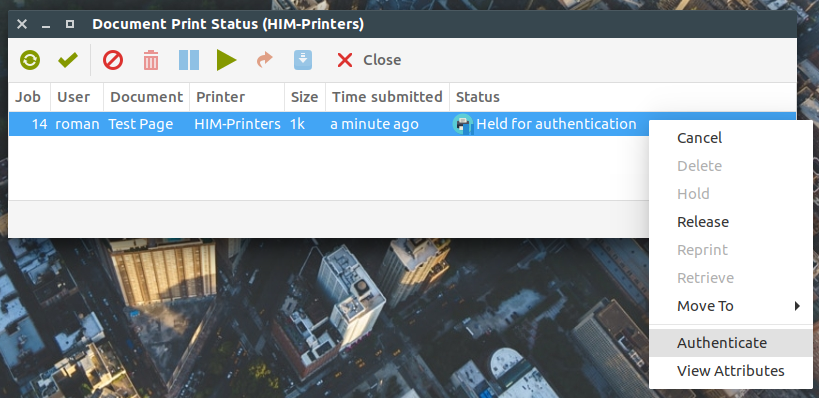
Your job staus should be "Held for authentication". Select that job, right click and choose "authenticate":
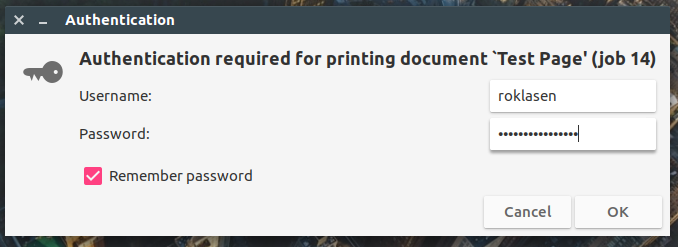
Enter your ZDV username/password (without any domain information like "UNI-MAINZ\", "@uni-mainz.de", etc.) and check "Remember password":
If the authentication worked, your job shoud disappear from the printer queue. You can now release your print jobs.